Skip to main contentOnce you have logged into the app, you will be greeted with the home screen. The home screen provides a comprehensive overview of your recent activities and tasks. Below is a detailed breakdown of the various sections:
Report Section
This section provides a summary of the completed and pending work orders over the last 7 days.
-
Completed Workorders: Displays the total number of work orders completed in the last 7 days.
- Count: The number
45 indicates the completed work orders.
-
Workorder Status:
- In Progress: Shows the number of work orders currently in progress (
11).
- Overdue: Shows the number of overdue work orders (
12).
- Pending: Shows the number of pending work orders (
1).
Workorder Tabs
These tabs help to filter the work orders based on their status:
- Pending: Displays work orders that are yet to be started.
- In Progress: Displays work orders that are currently being worked on.
- High Priority: Displays work orders marked as high priority.
Workorder Details
This section shows details of individual work orders including:
- Workorder Number: Unique identifier for the work order (
WO: 189).
- Priority: Indicates the priority level of the work order (
Highest with a red dot).
- Title: Brief description of the work order (
Air Conditioner - CLT-000005).
- Location: Location where the work order is to be executed (
Sapphire Towers).
- Type: Type of maintenance required (
AC Breakdown Maintenance).
At the bottom of the home screen, there is a navigation menu with the following options:
- Workorder: View and manage all work orders.
- Assets: View and manage assets.
- Menu: Access additional app settings and options.
Visual Guide
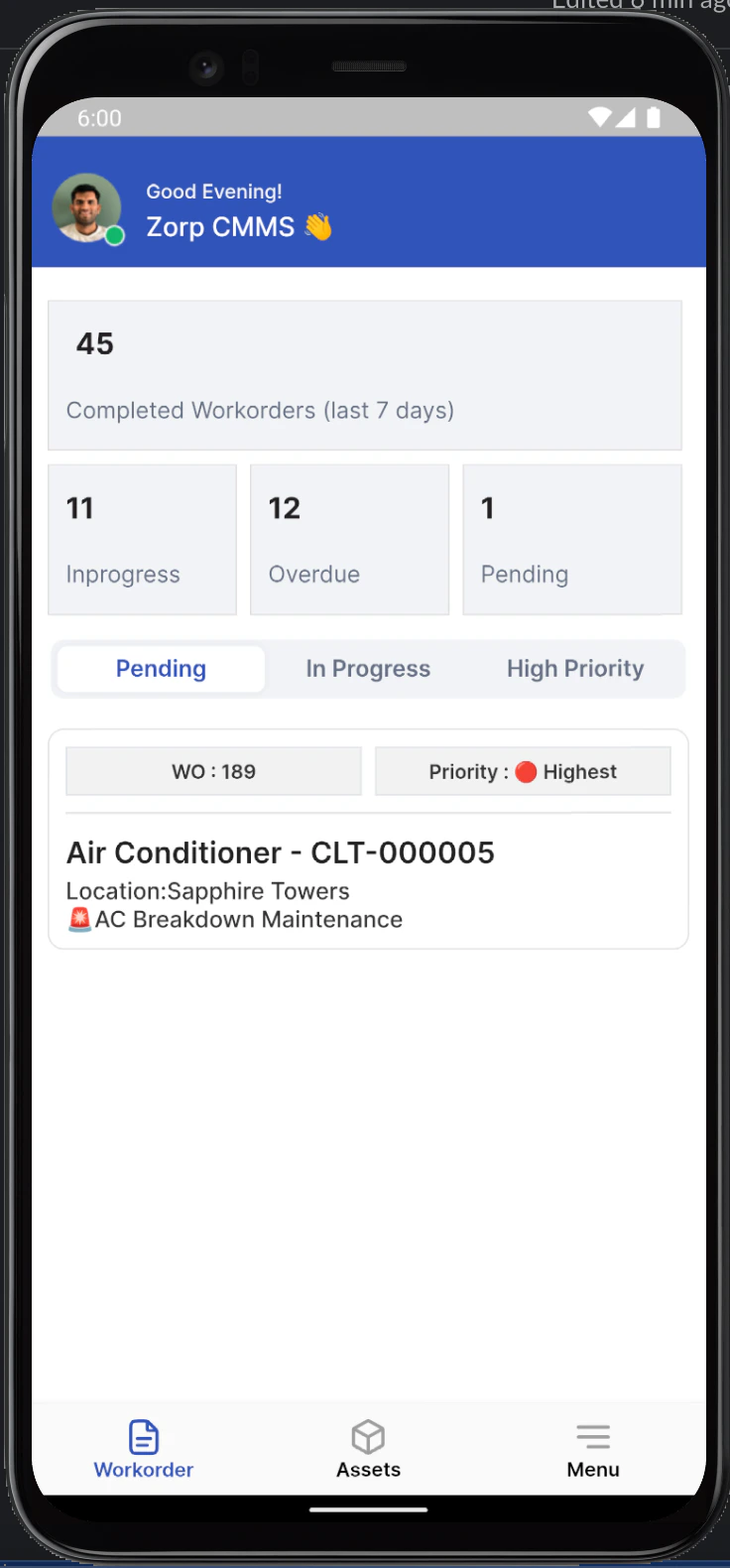 The image above provides a visual reference for the home screen layout and elements described in this guide.
